4.4.4. MODIS
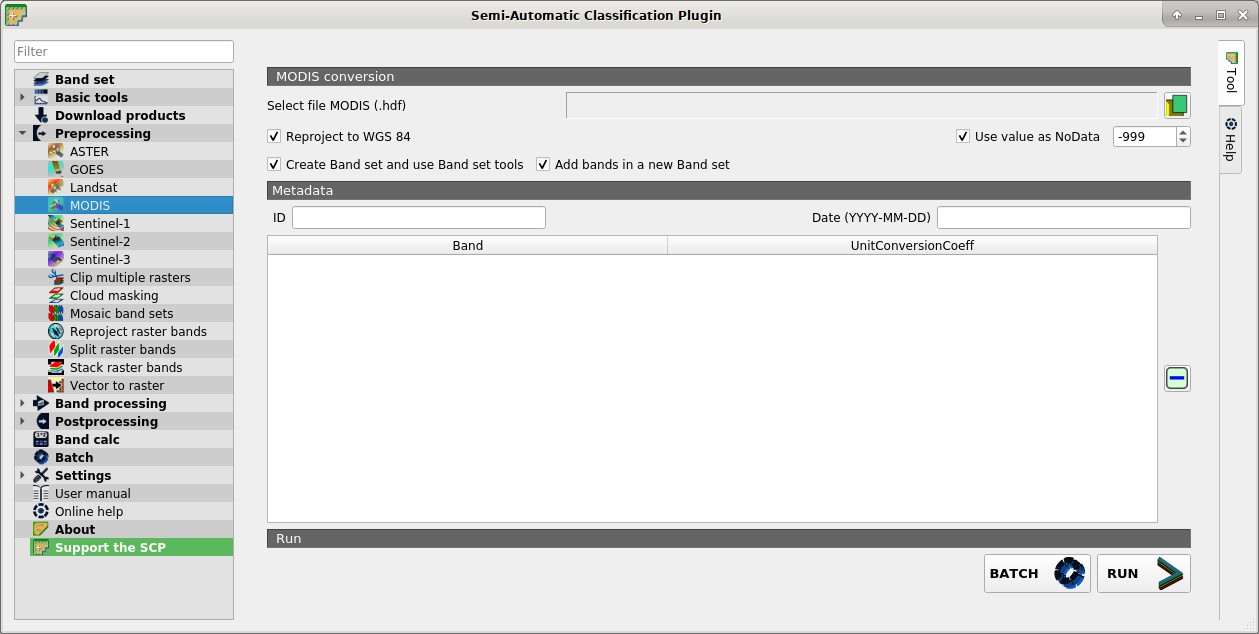
 MODIS
This tab allows for the conversion of MODIS images to .tif format, and the reprojection to WGS 84.
Once the input is selected, available bands are listed in the metadata table.
4.4.4.1. MODIS conversion
Select file MODIS
 : select a MODIS image (file .hdf);
 Reproject to WGS 84: if checked, reproject bands to WGS 84, required for use in SCP;
- Use value as NoData
 : if checked, pixels having
 NoDatavalue are not counted during conversion and the DOS1 calculation of DNmin; it is useful when image has a black border (usually pixel value = -999); - Create Band set and use Band set tools: if checked, bands are added to the active Band set after the conversion; also, the Band set is processed according to the tools checked in the Band set;
- Add bands in a new Band set: if checked, bands are added to a new empty Band set after the conversion;
4.4.4.2. Metadata
All the bands found in the Select file MODIS are listed in the table Metadata. For information about Metadata fields visit the MODIS page .
ID
 : ID of the image;
Date
: date of acquisition (e.g. 2013-04-15); : remove highlighted bands from the table Metadata;
 Metadata: table containing the following fields;
Band: band name;
UnitConversionCoeff: value for conversion;
BATCH
 : add this function to the Batch;
RUN
 : select an output directory and start the conversion process; only bands listed in the table Metadata are converted; converted bands are saved in the output directory with the prefix
 RT_and automatically loaded in QGIS;