4.4.9. Cloud masking
 Cloud masking
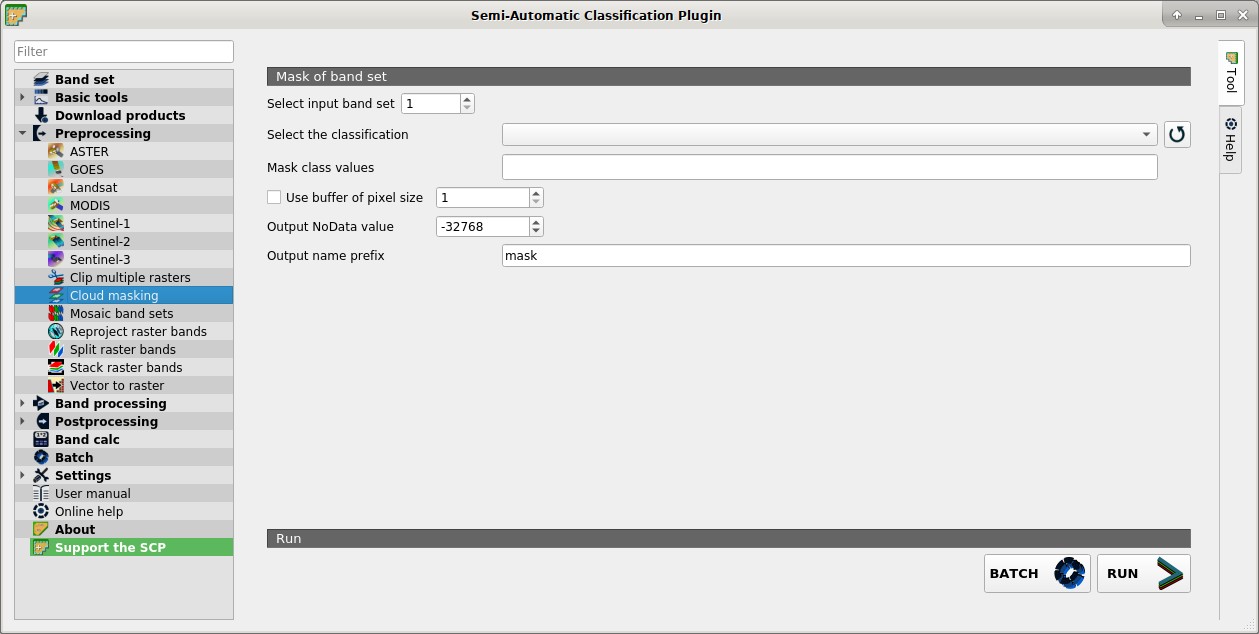
This tool allows for cloud masking, based on the values of a raster mask, creating an output masked band for each band of the Band set.
NoData is set in all the bands of the Band set for pixels corresponding to clouds.
4.4.9.1. Mask of band set
Select input band set
 : select the input Band set to be masked;
Select the classification
 : select a classification raster (already loaded in QGIS) which contains a cloud class;
 : refresh layer list;
Mask class values
 : set the class values to be masked; class values must be separated by
 ,and-can be used to define a range of values (e.g.1, 3-5, 8will select classes 1, 3, 4, 5, 8); if the text is red then the expression contains errors; Use buffer of pixel size : if checked, a buffer is created for masked area, corresponding to the defined number of pixels; this can be useful to dilate masked area in case the mask doesn’t cover the thinner border of clouds;
Output NoData value
: set the value of NoDatapixels corresponding to clouds;Output name prefix
: set the prefix for output file names (default is mask);BATCH
 : add this function to the Batch;
RUN
 : select an output directory and start the mask process;