4.4.8. Clip multiple rasters
 Clip multiple rasters
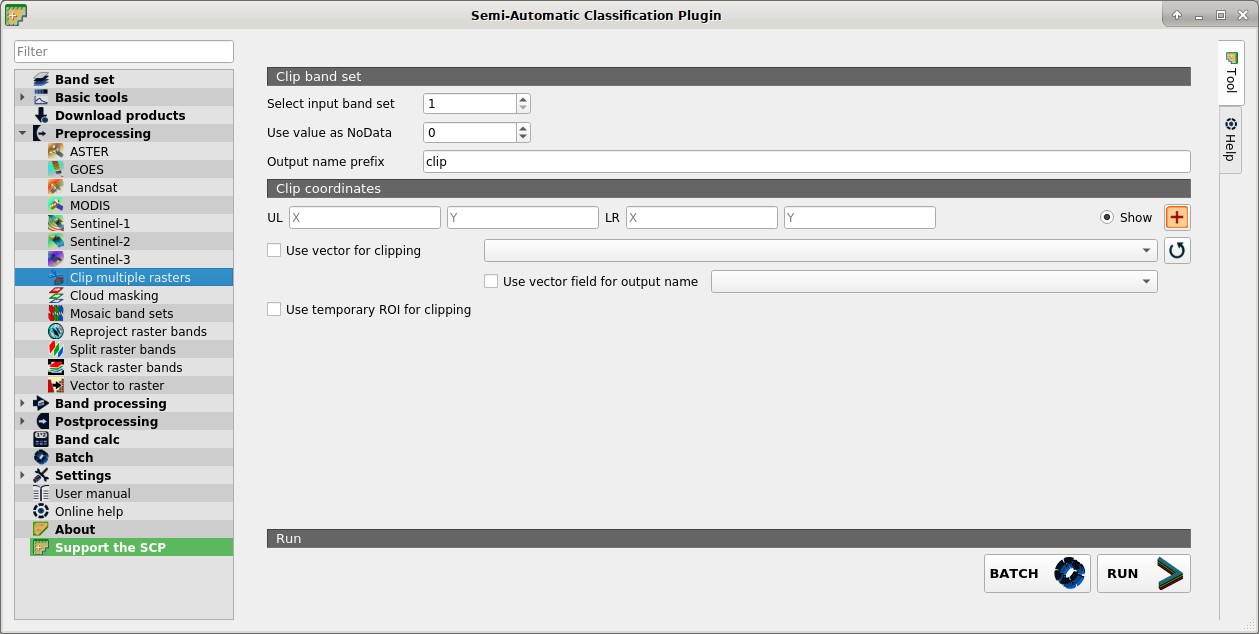
This tab allows for cutting several image bands at once, using a rectangle defined with point coordinates or a boundary defined with a vector.
4.4.8.1. Clip band set
Select input band set
 : select the input Band set to be clipped;
 Use value as NoData : if checked, set the value for
 NoDatapixels (e.g. pixels outside the clipped area);Output name prefix
 : set the prefix for output file names (default is
 clip);
4.4.8.2. Clip coordinates
Set the Upper Left (UL) and Lower Right (LR) point coordinates of the rectangle used for clipping; it is possible to enter the coordinates manually. Alternatively use a vector.
UL X
: set the UL X coordinate;UL Y
: set the UL Y coordinate;LR X
: set the LR X coordinate;LR Y
: set the LR Y coordinate; Show: show or hide the clip area drawn in the map;
 : define a clip area by drawing a rectangle in the map; left click to set the UL point and right click to set the LR point; the area is displayed in the map;
- Use vector for clipping
 : if checked, use the selected vector (already loaded in QGIS) for clipping; UL and LR coordinates are ignored;
 - Use vector field for output name : if checked, a vector field is selected for clipping while iterating through each vector polygon and the corresponding field value is added to the output name;
- Use temporary ROI for clipping: if checked, use a Temporary ROI for clipping; UL and LR coordinates are ignored;
 : refresh layer list;
BATCH
 : add this function to the Batch;
RUN
 : choose an output destination and clip rasters in the selected
 Band set;