4.3. Download products
The tab  Download products includes the tools for searching and downloading free remote sensing images.
Also, automatic conversion to reflectance of downloaded bands is available.
Download products includes the tools for searching and downloading free remote sensing images.
Also, automatic conversion to reflectance of downloaded bands is available.
An internet connection is required and free registration could be required depending on the download service.
This tool allows for searching and downloading:
Landsat Satellites images (from 1 MSS to 8 OLI) acquired from the 80s to present days;
Sentinel-1 Satellites images (GRD) acquired from 2014 to present days;
Sentinel-2 Satellite images (Level-1C and Level-2A) acquired from 2015 to present days;
Sentinel-3 Satellite images (OLCI Level-1B OL_1_EFR) acquired from 2016 to present days;
ASTER Satellite images (Level 1T) acquired from 2000 to present days;
MODIS Products images (MOD09GQ, MYD09GQ, MOD09GA, MYD09GA, MOD09Q1, MYD09Q1, MOD09A1, MYD09A1) acquired from 2000 to present days;
GOES Products images (GOES 16 and GOES 17 Full Disk L1b Radiance) acquired from 2017 to present days;
For Landsat, ASTER, and MODIS the search is performed through the CMR Search API developed by NASA. Landsat images are freely available through the services: EarthExplorer USGS , Google Cloud Storage Landsat . The ASTER L1T and MODIS products are retrieved from the online Data Pool, courtesy of the NASA Land Processes Distributed Active Archive Center (LP DAAC), USGS/Earth Resources Observation and Science (EROS) Center, Sioux Falls, South Dakota, https://lpdaac.usgs.gov/data_access/data_pool.
GOES products are downloaded through Amazon AWS Open Data .
For Sentinel-1, Sentinel-2, and Sentinel-3 the search is performed through the Copernicus Open Access Hub (using the Data Hub API ). Sentinel-2 are downloaded from Google Cloud Storage if available.
Please notice that Sentinel products older than 12 months may be archived in Long Term Archives ) and should be requested through the Copernicus Open Access Hub .
This tool attempts to download images first from Amazon Web Services and Google Earth Engine ; only if images are not available, the download is performed through the services that require to login.
4.3.1. Login data
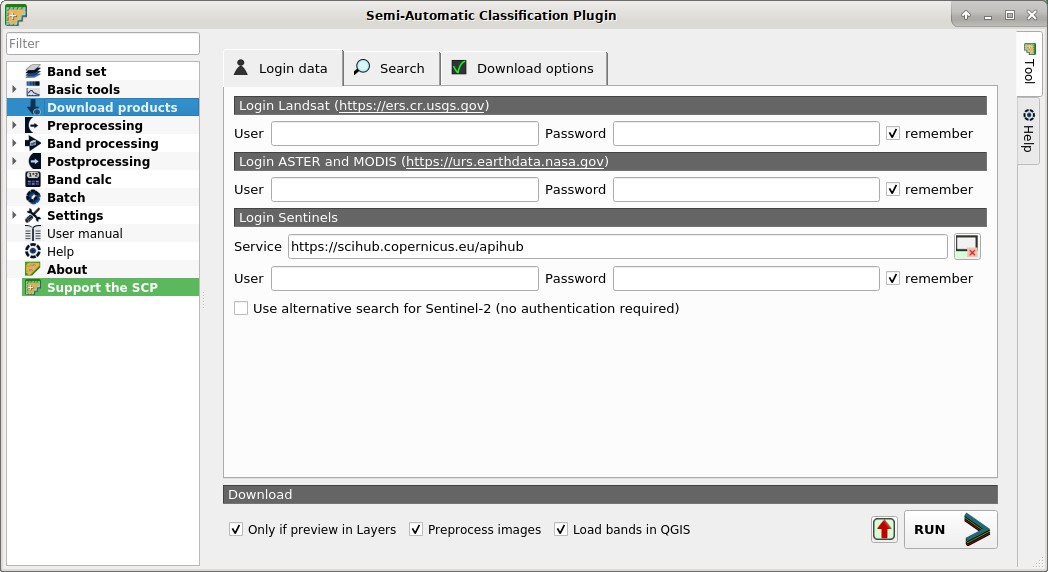
 Login data
4.3.1.1. Login https://ers.cr.usgs.gov
For Landsat images USGS EROS credentials (https://ers.cr.usgs.gov) are required for downloads from EarthExplorer . Login using your USGS EROS credentials or register for free at https://ers.cr.usgs.gov/register .
User

 : enter the user name;
Password
: enter the password; remember: remember user name and password in QGIS;
4.3.1.2. Login https://urs.earthdata.nasa.gov
For ASTER and MODIS images EOSDIS Earthdata credentials (https://urs.earthdata.nasa.gov ) are required for download. Login using your EOSDIS Earthdata credentials or register for free at https://urs.earthdata.nasa.gov/users/new . Before downloading ASTER and MODIS images, you must approve LP DAAC Data Pool clicking the following link https://urs.earthdata.nasa.gov/approve_app?client_id=ijpRZvb9qeKCK5ctsn75Tg
User
: enter the user name;Password
: enter the password;- remember: remember user name and password in QGIS;
4.3.1.3. Login Sentinels
In order to access to Sentinel data a free registration is required at https://scihub.copernicus.eu/userguide/1SelfRegistration (other services may require different registrations). After the registration, enter the user name and password for accessing data.
For searching Sentinel-2 images it is possible to use a service that does not require authentication.
Service
: enter the service URL (default is https://scihub.copernicus.eu/apihub); other mirror services that share the same infrastructure can be used (such as https://scihub.copernicus.eu/dhus , https://finhub.nsdc.fmi.fi , https://data.sentinel.zamg.ac.at); : reset the default service;
User
: enter the user name;Password
: enter the password;- remember: remember user name and password in QGIS;
- Use alternative search for Sentinel-2 (no authentication required) : if checked, use the CREODIAS Finder API for searching (from https://creodias.eu/eo-data-finder-api-manual the database is accessible free and anonymously, and open for anonymous access to everyone, no authorization is used); more information about Copernicus DIAS platforms at https://www.copernicus.eu/en/access-data/dias ;
4.3.2. Search
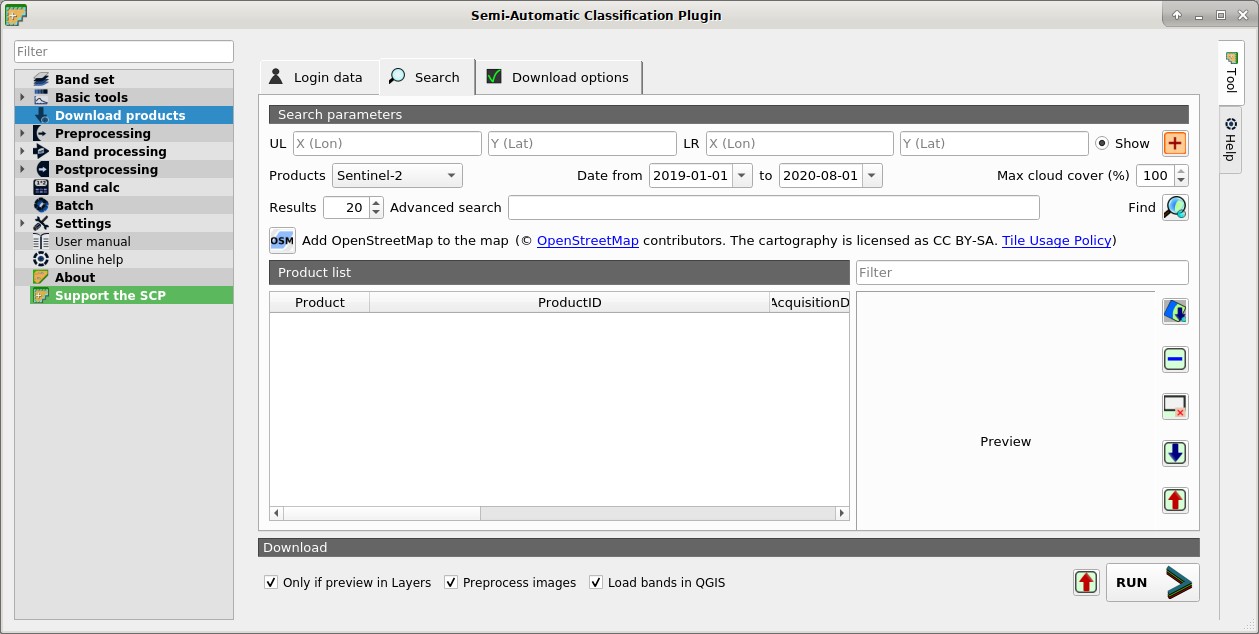
 Search
4.3.2.1. Search parameters
Define the search area by entering the coordinates (longitude and latitude) of an Upper Left (UL) point and Lower Right (LR) point and select a product to search.
Optional settings are date of acquisition, maximum cloud cover, number of results (the less the results, the faster is the query).
The definition of a search area is required before searching the images.
For Sentinel-2 it is possible to avoid the definition of a search by entering a granule name in the Advanced search .
UL
 : set the UL longitude X (Lon) and the UL latitude Y (Lat);
LR
: set the LR longitude X (Lon) and the LR latitude Y (Lat); Show: show or hide the search area in the map;
 : define a search area by left click to set the UL point and right click to set the LR point; the search area is displayed in the map;
Products
 : set the search product;
Date from
 : set the starting date of acquisition;
to
: set the ending date of acquisition;Max cloud cover (%)
: maximum cloud cover in the product;Results
: maximum number of products returned by the search;Advanced search
: some services (e.g. Sentinel-2) allows for entering search parameters; for instance, it is possible to enter the name of a granule (e.g. 33TTG) without defining a search area in order to get the results of that granule; Sentinel-2 level 2A can be filtered entering S2A_MSIL2A*;Filter
: set a filter such as the Product ID (e.g. LC81910312015006LGN00); it is possible to enter multiple Product IDs separated by comma or semicolon (e.g.LC81910312015006LGN00, LC81910312013224LGN00); filter is applied to resulting products in the search area;Find
 : find the products in the search area; results are displayed inside the table in Product list; results are added to previous results;
 Add OpenStreetMap to the map: this button allows for the display of OpenStreetMap tiles (© OpenStreetMap contributors) in the QGIS map as described in https://wiki.openstreetmap.org/wiki/QGIS . The cartography is licensed as CC BY-SA (Tile Usage Policy );
TIP: Search results (and the number thereof) depend on the defined area extent and the range of dates. In order to get more results, perform multiple searches defining smaller area extent and narrow acquisition dates (from and to).
4.3.2.2. Product list
The table Product list contains the results of the search. Click on any item (highlight) to display the image preview thereof (not all the products include image previews). Results are saved with the QGIS project.
 Product list
  : found products are displayed in this table, which includes the following fields;
Product: the product name;
ProductID: the product ID;
AcquisitionDate: date of acquisition of product;
CloudCover: percentage of cloud cover in the product;
Zone/Path: the zone or WRS path depending on the product type;
Row/DayNightFlag: the WRS row or acquisition flag(day or night) depending on the product type;
min_lat: minimum latitude of the product;
min_lon: minimum longitude of the product;
max_lat: maximum latitude of the product;
max_lon: maximum longitude of the product;
Collection/Size: collection code or size depending on the product type;
Preview: URL of the product preview;
Collection/ID: collection or image ID depending on the product type;
Collection/Image: collection or image ID depending on the product type;
 : display preview of highlighted images in the map; preview is roughly georeferenced on the fly (not all the products include a preview);
 : remove highlighted images from the list;
- : remove all images from the list;
 : import the product list from a text file (i.e.
 .txt); : export the product list to a text file (i.e.
 .txt);
4.3.2.3. Download
Download the products in the Product list. During the download it is recommended not to interact with QGIS.
- Only if preview in Layers: if checked, download only those images listed in Product list which are also listed in the QGIS layer panel;
- Preprocess images: if checked, bands are automatically converted after the download, according to the settings defined in Landsat;
- Load bands in QGIS: if checked, bands are loaded in QGIS after the download;
- : export the download links to a text file;
RUN
 : start the download process of all the products listed in Product list;
4.3.3. Download options
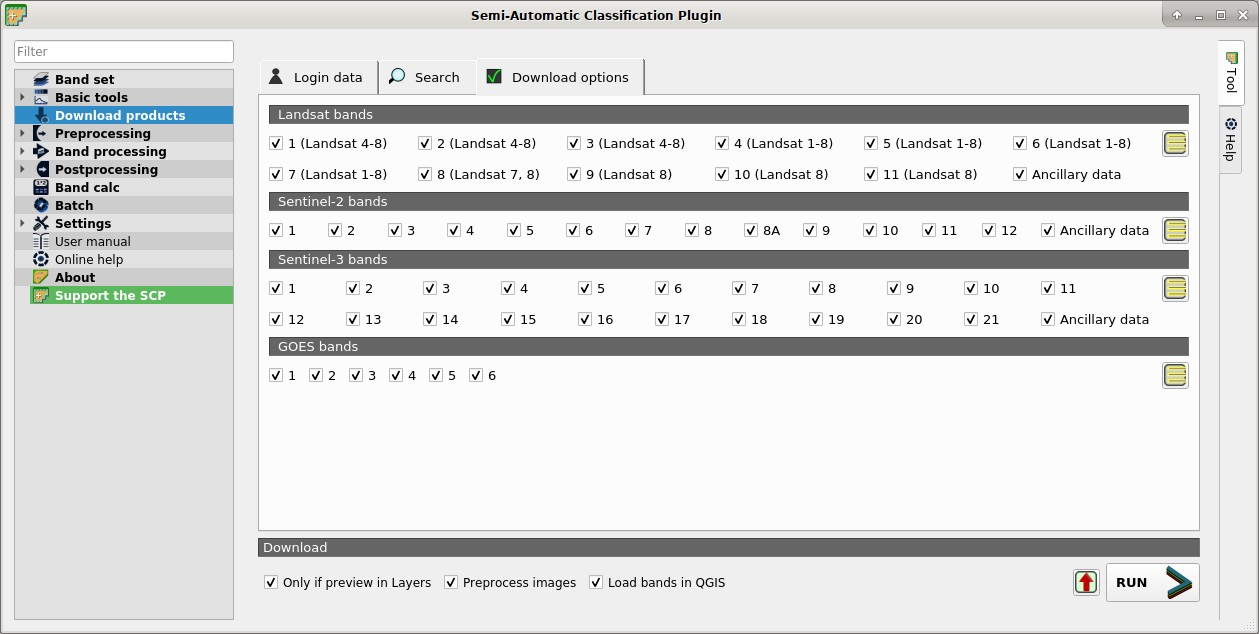
 Download options
This tab allows for the selection of single bands for Landsat, Sentinel-2, and Sentinel-3 images. Depending on the download service, single band download could be unavailable.
- Band
X: select bands for download; - Ancillary data: if checked, the metadata files are selected for download;
 : select or deselect all bands;