4.6. Band calc

 Band calc
The Band calc allows for the raster calculation for bands (i.e. calculation of pixel values) using NumPy functions .
Band calc can also work with multuple expression lines to perform multiple calculation at a time; several iteration functions are available for Band sets allowing to perform multitemporal calculations.
This tool supports virtual raster output; if the output file name ends with .vrt then the output is created as virtual raster composed of as many .tif files as the number of CPU threads defined in System; for large rasters this can speed up the process.
Raster bands must be already loaded in QGIS. Input rasters can also be in different projection, but the output will have the projection of the reference raster.
In addition, a tool for decision rules is included.
4.6.1. Band list
 Band list: table containing a list of single band rasters (already loaded in QGIS);
Filter
 : filter the list;
Variable: variable name defined automatically for every band (e.g. raster1, raster2);
Band name: band name (i.e. the layer name in QGIS);
 : refresh image list;
4.6.2. Expression
Enter a mathematical expression for raster bands.
In particular, NumPy functions can be used with the prefix np. (e.g. np.log10(raster1) ).
For a list of NumPy functions see the NumPy page .
The expression can work with both Variable and Band name (between double quotes). Double click on any item in the Band list for adding the name thereof to the expression.
If text color in the Expression is green, then the syntax is correct; if text color is red, then the syntax is incorrect and it is not possible to execute the calculation.
It is possible to enter multiple expressions separated by newlines such as the following example:
"raster1" + "raster2"
"raster3" - "raster4"
The above example calculates two new rasters in the output directory with the suffix _1 (e.g. calc_raster_1 ) for the first expression and _2 (e.g. calc_raster_2 ) for the second expression.
Also, it is possible to define the output name using the symbol @ followed by the name, such as the following example:
"raster1" + "raster2" @calc_1
"raster3" - "raster4" @calc_2
 Input NoData as value: if checked, input
 NoDatapixels are replaced byNoDatavalue and accounted in calculation;- Use value as NoData
 : if checked, selected value is used as
 NoDataduring calculation; Calculation data type: select the data type used during calculation as Float32 (default), Int32, Int16, UInt32, UInt16, Byte; for instance, if Int32 is selected, input float values will be evaluated as integer;
- Extent: if the following options are unchecked, the output raster extent will include the extents of all input rasters;
- Intersection: if checked, the extent of output raster equals the intersection of input raster extents (i.e. minimum extent);
- Same as
 : if checked, the extent of output raster equals the extent of “Map extent” (the extent of the map currently displayed) or a selected layer;
 Align: if checked, and Same as is checked selecting a raster, the calculation is performed using the same extent and pixel alignment of selected raster;
4.6.2.1. Input variables
The following variables related to the Band set are available (please note that the character " is always required):
bandset#b BAND_NUMBER: bands in the active Band set can be referenced directly; the following example refers to band 1 of the active Band set:
"bandset#b1"bandset BANDSET_NUMBER
bBAND_NUMBER: bands in the Band set can be referenced directly; the following example refers to band 1 of the Band set 1:"bandset1b1"bandset{ BANDSET_NUMBER_LIST
}bBAND_NUMBER: list of all the bands X of all the Band sets matching a list between curly brackets (e.g. {1,2,3}) or range of Band sets separated by colon (e.g. {1:3}) or a list of ranges of Band sets (e.g. {1:3, 5:8}), which is equivalent to[bandset1bX, bandset2bX, ..., bandsetNbX]; this variable can be used in expressions that accept band lists such as the sum:sum("bandset{1,3}b1")
bandset#b*: list of all the bands of active Band set, which is equivalent to
[bandset#b1, bandset#b2, ..., bandset#bX]; to be used in expressions that accept band lists such as the maximum value:max("bandset#b*")
bandset BANDSET_NUMBER
b*: list of all the bands of Band set N, which is equivalent to[bandsetNb1, bandsetNb2, ..., bandsetNbX]; to be used in expressions that accept band lists such as the minimum value:min("bandset1b*")
bandset*b BAND_NUMBER: list of all the bands X of all the Band sets, which is equivalent to
[bandset1bX, bandset2bX, ..., bandsetNbX]; to be used in expressions that accept band lists such as the mean value:mean("bandset*b1")
bandset{ DATE
}bBAND_NUMBER: list of all the bands X of all the Band sets matching a list of dates (format yyyy-mm-dd) between curly brackets (e.g. {2019-01-01,2019-07-31}) or range of dates separated by colon (e.g. {2019-01-01:2019-07-31}) or a list of ranges of dates (e.g. {2019-01-01:2019-01-31, 2019-04-01:2019-07-31}), which is equivalent to[bandset2bX, bandset5bX, ..., bandsetNbX]; Band sets dates are defined in Band set definition; this variable can be used in expressions that accept band lists such as the median value:median("bandset{2019-01-01,2019-07-31}b1")
“#BLUE#”: the band with the center wavelength closest to 0.475 \(\mu m\);
“#GREEN#”: the band with the center wavelength closest to 0.56 \(\mu m\);
“#RED#”: the band with the center wavelength closest to 0.65 \(\mu m\);
“#NIR#”: the band with the center wavelength closest to 0.85 \(\mu m\); for example:
( "#NIR#" - "#RED#" ) / ( "#NIR#" + "#RED#" )
4.6.2.2. Output variables
Output names can be defined in the expression line entering the symbol @ followed by the name, such as the following example:
"raster1" * 2 @first_calculation
If the output name is defined in the expression, an output directory will be selected after clicking the button RUN.
WARNING: It is recommended to avoid the use of characters # and @ in the output raster name.
It is possible to set the output path directly by defining the output name with this structure @path@name, such as:
"raster1" * 2 @/home/user@first_calculation
The directory will be created if it does not exist.
It is possible to create a temporary output (saved in the temporary directory) with @temp@ followed by output name, such as:
"raster1" * 2 @temp@first_calculation
The output name of calculation can be used as input variable for the following calculations; for example:
"raster1" * 2 @first_calculation
"first_calculation" + 5 @temp@second_calculation
"second_calculation" - "raster1" @/home/user@third_calculation
It is possible to add the calculation result to a Band set using the symbol % followed by the Band set number such as:
"raster1" @first_calculation%1
It is possible to add the calculation result to the active Band set using the symbol % followed by the symbol # such as:
"raster1" @first_calculation%#
Also, variables for output name are available:
#BANDSET#: the name of the first band in the Band set;
#DATE#: the current date and time (e.g. 20161110_113846527764);
Using the symbol @ followed by the variable #BANDSET# can save the raster calculation inside the directory containing the first band of the active band set, such as:
"raster1" @#BANDSET#@first_calculation
If the output name is defined with the extension .vrt, the output will be a virtual raster referencing the single .tif files calculated by parallel processing.
For instance, the following expression will calculate the raster with parallel processing and the output will be a .vrt:
"raster1" @first_calculation.vrt
Virtual file is useful to reduce calculation time of parallel processing by avoiding the writing of the entire output raster.
WARNING: a
.vrtvirtual file is a text file containing the reference to existing.tiffiles. Moving the.vrtvirtual file or the.tiffiles in different directories can make the virtual file unusable.
4.6.2.3. Buttons
The following buttons are available:
+: plus;
-: minus;
*: product;
/: ratio;
==: equal;
!=: not equal;
<: less then;
>: greater then;
(: open parenthesis;
): close parenthesis;
^: power;
V: square-root;
 : open a text file (.txt) containing custom expressions to be listed in Functions; the text file must contain an expression for each line; each line must be in the form
 expression_name; expression(separated by;) where theexpression_nameis the expression name that is displayed in the Functions; if you open an empty text file, the default values are restored; following an example of text content:NDVI; ( "#NIR#" - "#RED#" ) / ( "#NIR#" + "#RED#" ) @NDVI EVI; 2.5 * ( "#NIR#" - "#RED#" ) / ( "#NIR#" + 6 * "#RED#" - 7.5 * "#BLUE#" + 1) @EVI SR; ( "#NIR#" / "#RED#" ) @SR
4.6.3. Functions
4.6.3.1. Conditional
where: conditional expression according to the syntax
where( condition , value if true, value if false)for example:where("raster1" == 1, 2, "raster1")
Parenthesis are required for multiple conditions for instance to select pixel values between 1 and 3:
where( ("raster1" > 1) & ("raster1" < 3), 2, "raster1")
Nested conditions can be defined such as:
where( ("raster1" > 1) & ("raster1" < 3), 2, "raster1")
4.6.3.2. Logical
AND: AND;
OR: OR;
XOR: XOR;
NOT: NOT;
4.6.3.3. Statistics
A band list between square brackets or Input variables are required arguments.
max: maximum; for instance:
max(["raster1", "raster2", "raster3"])
min: minimum; for instance:
min(["bandset#b*"])
mean: mean; for instance:
mean("bandset*b1")
median: median; for instance:
median("bandset{2019-01-01,2019-07-31}b1")
percentile: percentile calculation; the expression must have this structure
percentile([band_list], percentile_value); for instance, the following expression calculates the 10th percentile of active band set:percentile("bandset#b*", 10)
std: standard deviation; for instance:
std("bandset{1,3}b1")
sum: sum; for instance:
sum("bandset{1:5}b1")
Operations
sin: sine; for instance:
sin("raster1")
cos: cosine;
tan: tangent;
asin: inverse sine;
acos: inverse cosine;
atan: inverse tangent;
exp: natural exponential;
ln: natural logarithm;
log: base 10 logarithm;
Indices
NDVI: if selected, the NDVI calculation is entered in the Expression:
( "#NIR#" - "#RED#" ) / ( "#NIR#" + "#RED#" ) @ NDVI
EVI: if selected, the EVI calculation is entered in the Expression:
2.5 * ( "#NIR#" - "#RED#" ) / ( "#NIR#" + 6 * "#RED#" - 7.5 * "#BLUE#" + 1) @ EVI
NBR: if selected, the NBR calculation is entered in the Expression:
( "#NIR#" - "#SWIR2#" ) / ( "#NIR#" + "#SWIR2#" ) @NBR
Variables
nodata: NoData value of raster (e.g.
nodata("raster1")); it can be used as value in the expression:where("raster1" == nodata("raster1"), 0, "raster1")
forbandsets: it allows for the iteration over Band sets defined between square brackets; a range of Band sets separated by colon (e.g.
forbandsets[1:3]) or a list separated by commas (e.g.forbandsets[1,2,3];forbandsetsmust be entered in the first line of expressions (not compatible withforbsdatesorforbandsinbandset), for instance:forbandsets[1:3] "bandset#b1" @#BANDSET#
During the iteration, the Input variables related to the active Band set are replaced by the iterator, therefore the expression:
forbandsets[1:3]
"bandset#b1" @#BANDSET#
is equivalent to:
"bandset1b1" @calc1
"bandset2b1" @calc2
"bandset3b1" @calc3
It is possible to enter a string (or a list of strings separated by comma ,) after the square bracket ] to filter Band sets by the name of first band in Band set; for instance, the following expression will iterate the first 3 Band sets selecting only the Band set whose name of the first band includes RT:
forbandsets[1,2,3]RT
forbsdates: it allows for the iteration over Band sets dates (format yyyy-mm-dd, defined in Band set definition) between square brackets;
forbsdatesmust be entered in the first line of expressions (not compatible withforbandsetsorforbandsinbandset) such as the following examples:
Iterating over a range of dates:
forbsdates[2020-01-01:2020-07-31]
"bandset#b1" @#BANDSET#
Iterating over a list of dates:
forbsdates[2020-02-01,2020-03-11,2020-04-21]
"bandset#b1" @#BANDSET#
Iterating over a list of ranges of dates:
forbsdates[2010-01-01:2010-06-31, 2010-08-01:2010-08-31, 2010-10-01:2010-12-31]
"bandset#b1" @#BANDSET#
During the iteration, the Input variables related to the active Band set are replaced by the iterator.
It is possible to enter a string (or a list of strings separated by comma ,) after the square bracket ] to filter Band sets by the name of first band in Band set; for instance, the following expression will iterate the Band sets in the range selecting only the Band set whose name of the first band includes RT:
forbsdates[2020-01-01:2020-07-31]RT
forbandsinbandset: it allows for the iteration over bands in a Band set or a range of Band sets between square brackets;
forbandsinbandsetmust be entered in the first line of expressions (not compatible withforbandsetsorforbsdates); the variable #BAND# must be used to refer to the iterated band such as the following examples:
Iterating over the bands of the first Band set (note the " in the expression):
forbandsinbandset[1]
where("#BAND#" > 1, 1, 2) @#BAND#)
Iterating over all the bands of Band sets from 1 to 3:
forbandsinbandset[1:3]
where("#BAND#" > 1, 1, 2) @#BAND#)
#BAND#:
!function!: it allows for using a Batch function inside Band calc; !function! must be followed by a Batch command to execute a function using raster names (also using Output variables) in the command; the special variable
!directory!can be used in the Batch command to refer to the output directory (defined after clicking the button RUN); the special variable!file!can be used in the Batch command to refer to the relative output file name (defined with @ after the command) respectively ; it is required to use the section character$instead of apostrophe'and!!instead of;for functions; for instance:!function! add_raster!!input_raster_name : $#NIR#$!!band_set : 1 !function! stack_raster_bands!!band_set : 1!!output_raster_path : $!directory!$
#BANDSET#: the name of the first band in the Band set;
#DATE#: the current date and time (e.g. 20161110_113846527764);
@: charcter @;
4.6.4. Decision rules
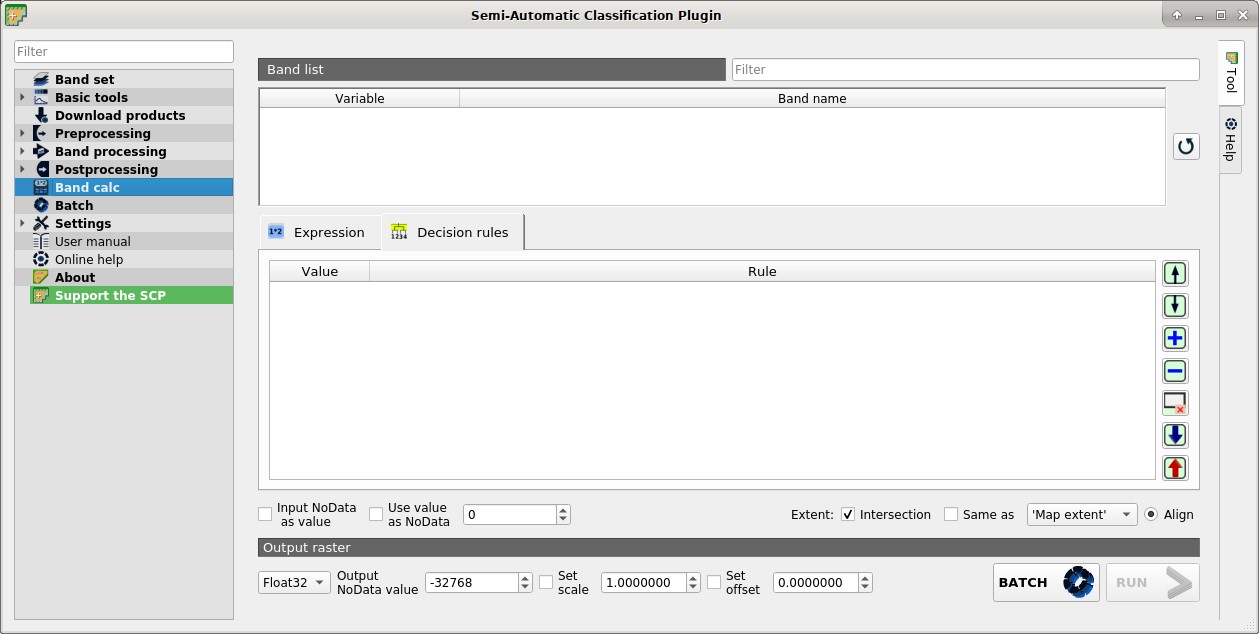
Decision rules allows for the calculation of an output raster based on rules. Rules are conditional statements based on other rasters; if the Rule is true, the corresponding Value is assigned to the output pixel.
Rules are verified from the first to the last row in the table; if the first Rule is false, the next Rule is verified for that pixel, until the last rule.
If multiple rules are true for a certain pixel, the value of the first Rule is assigned to that pixel.
The NoData value is assigned to those pixels where no Rule is true.
- Decision rules: table containing the following fields;
Value: the value assigned to pixels if the Rule is true;
Rule: the rule to be verified (e.g.
"raster1" > 0); multiple conditional statements can be entered separated by;(e.g."raster1" > 0; "raster2" < 1which means to set the Value whereraster1> 0 andraster2< 1);
 : move highlighted rule up;
 : move highlighted rule down;
 : add a new row to the table;
 : delete the highlighted rows from the table;
 : clear the table;
 : import rules from a text file;
 : export the rules to a text file that can be imported later;
4.6.5. Output raster
The output raster is a .tif file, with the same spatial resolution and projection of input rasters; if input rasters have different spatial resolutions, then the highest resolution (i.e. minimum pixel size) is used for output raster.
WARNING: if multiple lines are entered in Expression or output name are defined in line, a directory selection instead of a file selection is prompted for output.
Float32
: option to select output raster type as Float32 (default), Int32, Int16, UInt32, UInt16, Byte;Output NoData
: set the value of NoDatapixels in output raster;- Set scale : if checked, set a scale in output raster (and output values are divided by scale);
- Set offset : if checked, set an offset in output raster (and offset is subtracted to output values);
BATCH
 : add this function to the Batch;
RUN
 : if
: if Expressionis active and text is green, choose the output destination and start the calculation based onExpression; ifDecision rulesis active and text is green, choose the output destination and start the calculation based onDecision rules;